Integration Klaviyo
Activate Klaviyo Integration
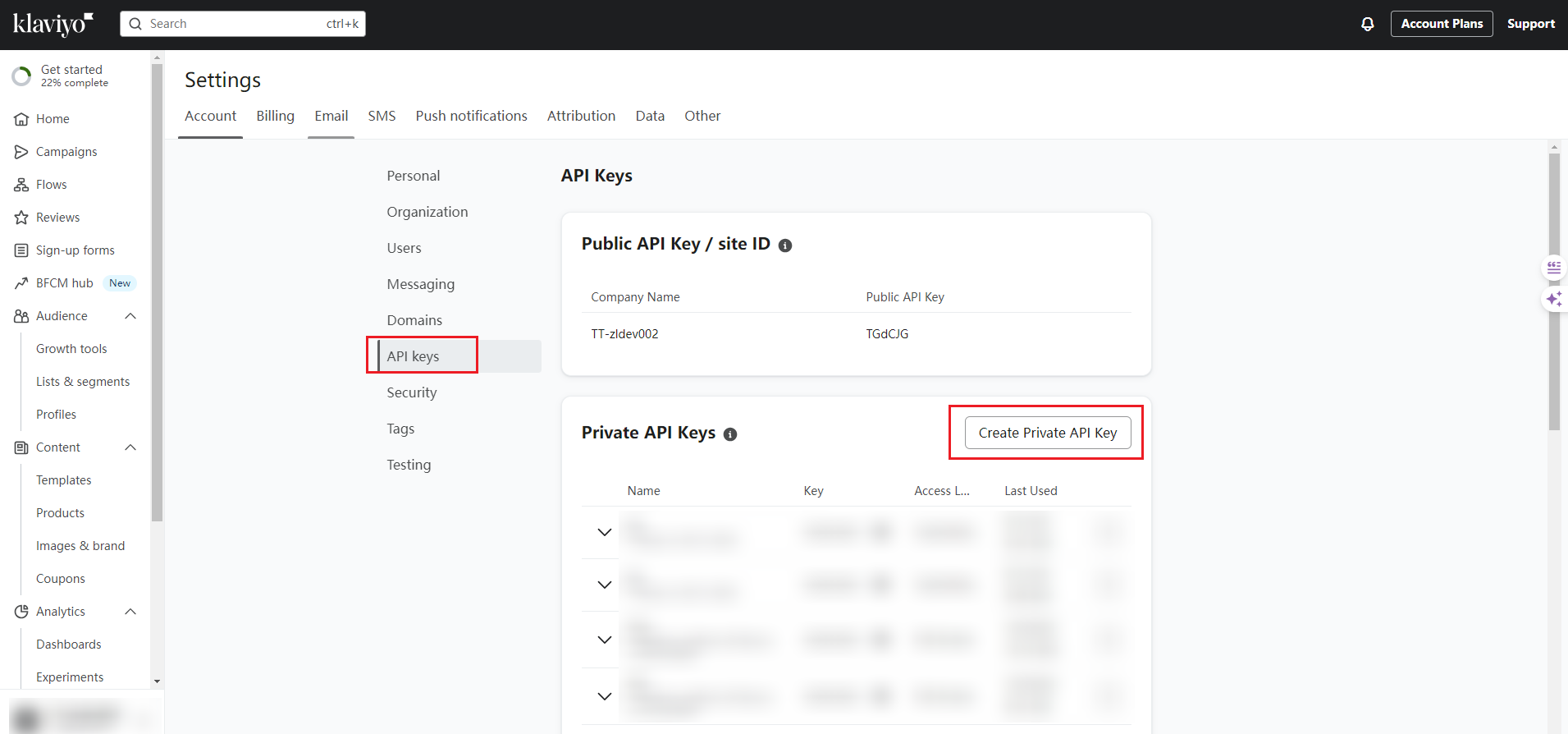
1. Create API Key in Klaviyo
Navigate to Klaviyo settings and create a Private API Key
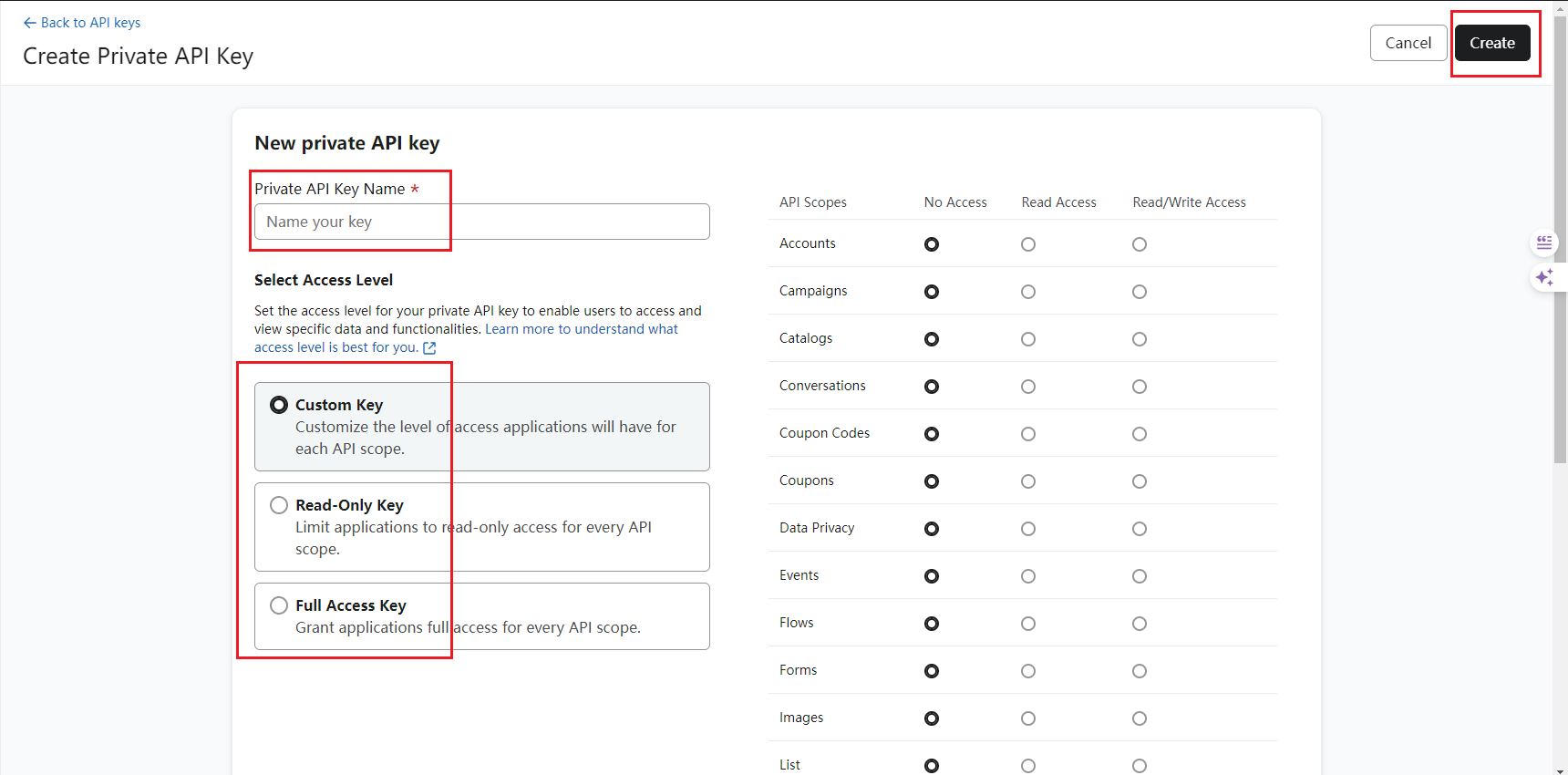
2. Configure API Key
- Add API Key Name
- Select Access Level permission
- Click Create
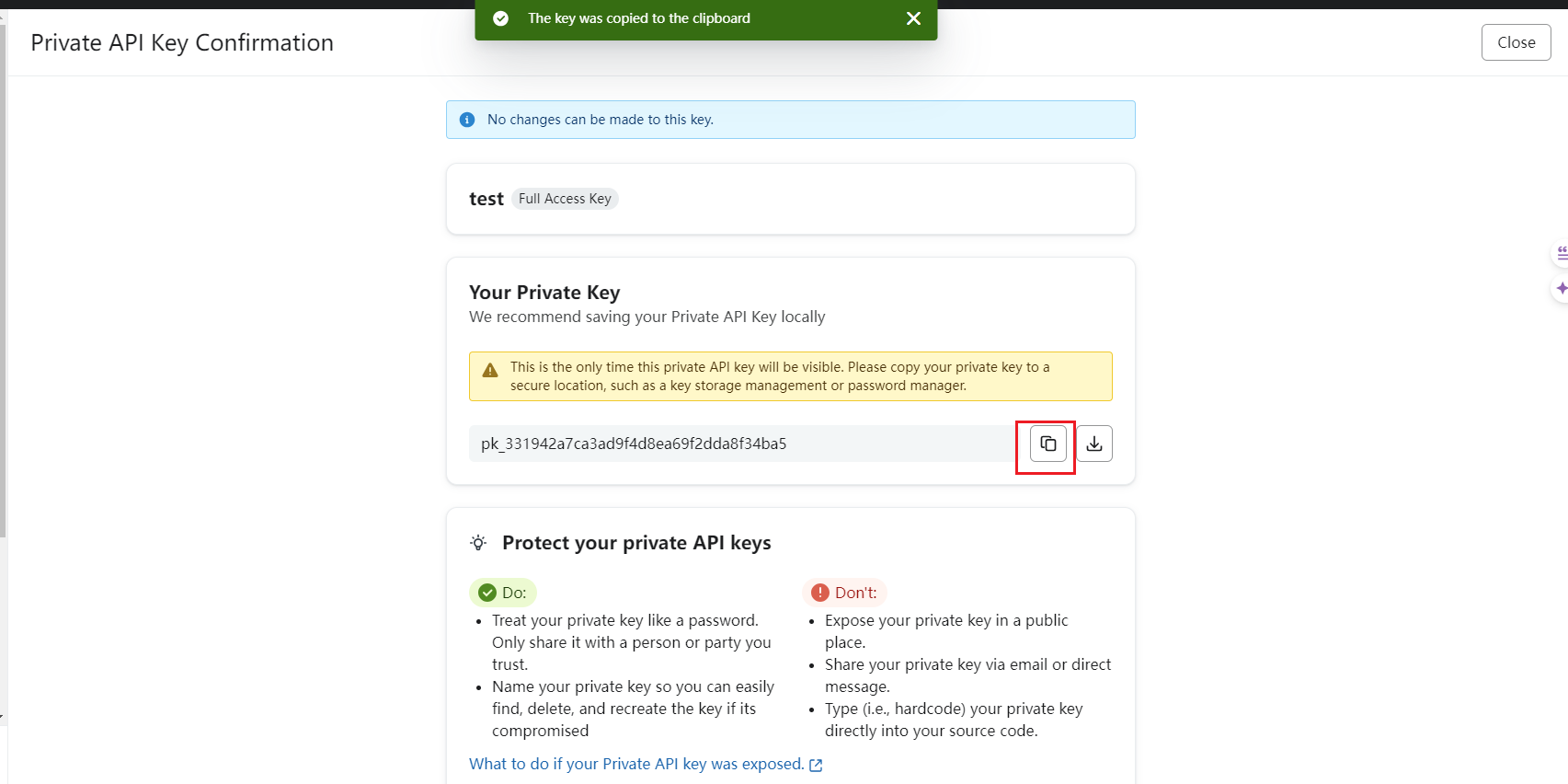
3. Copy API Key
Copy the generated API Key
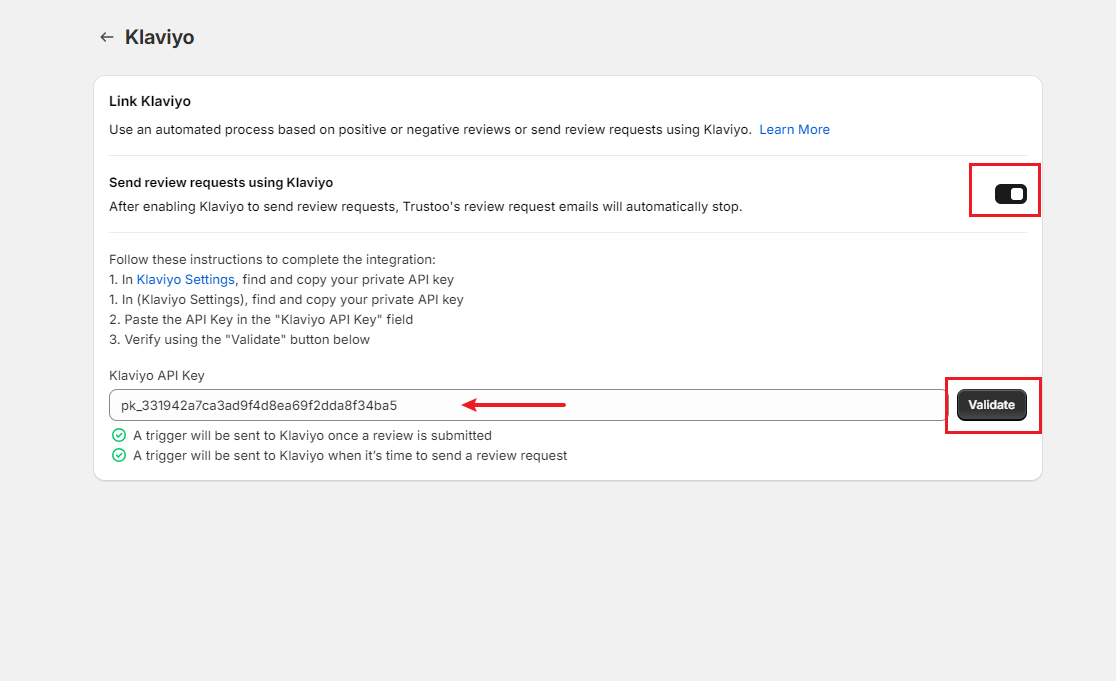
4. Integrate with Trustoo
- Go to Trustoo application > Integration > Klaviyo
- Paste the API Key
- Click Validate
- Turn on the switch
Creating a Review Request Process in Klaviyo
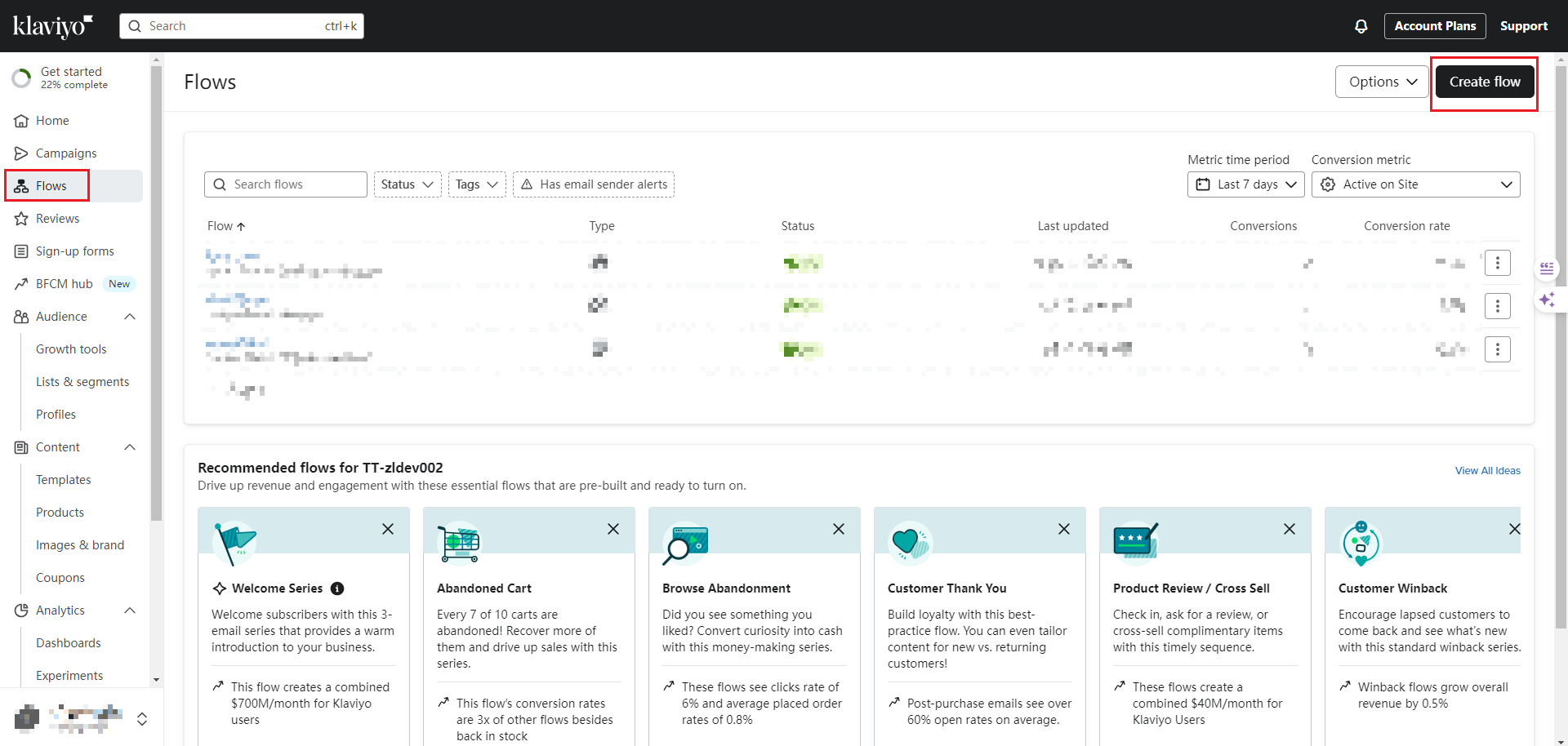
1. Create a New Flow
In Klaviyo, go to Flows and click Create flow
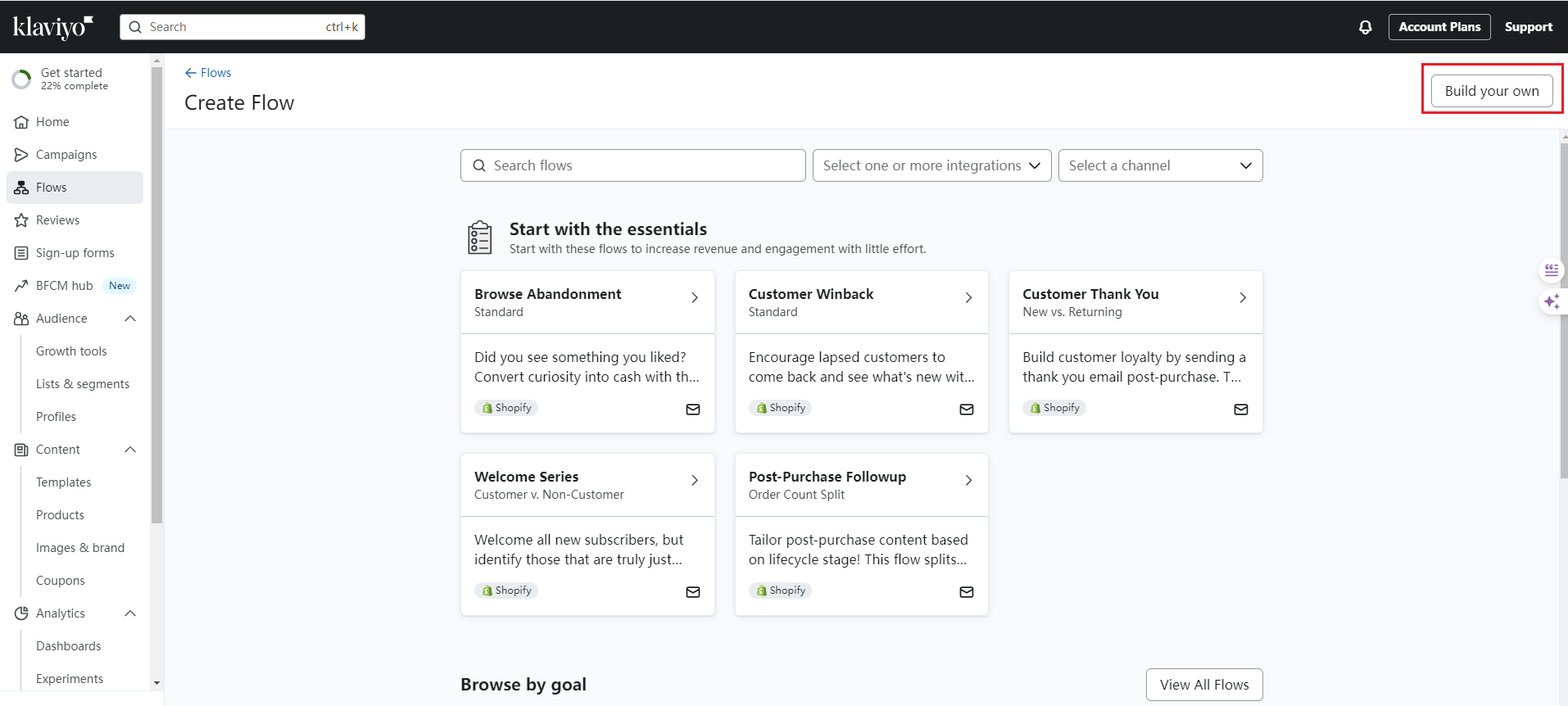
2. Build Your Own Flow
Click "Build your own"
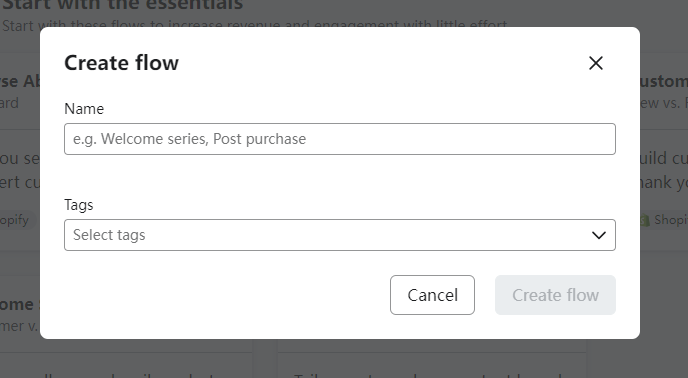
3. Name the Flow
Name your new flow and click Create flow
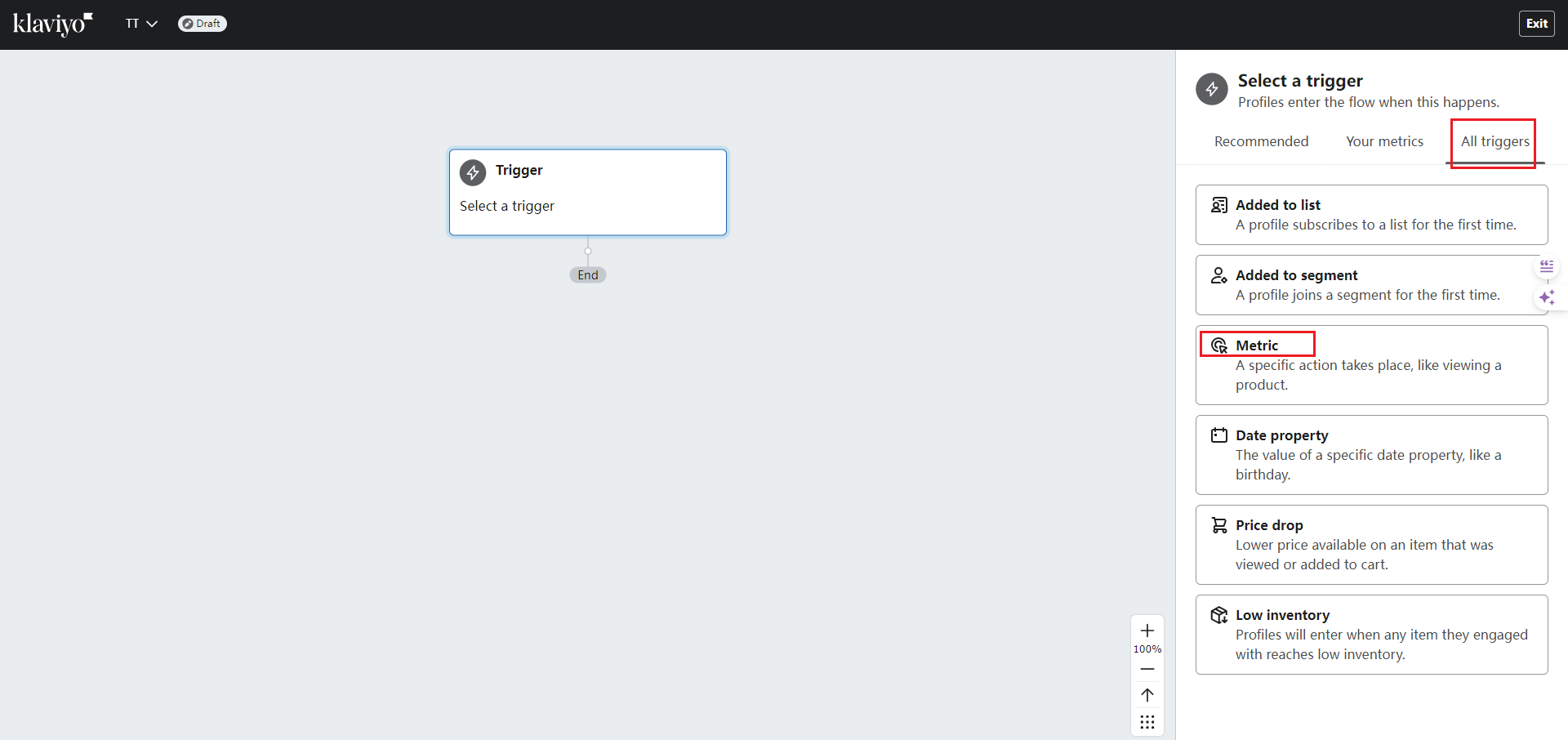
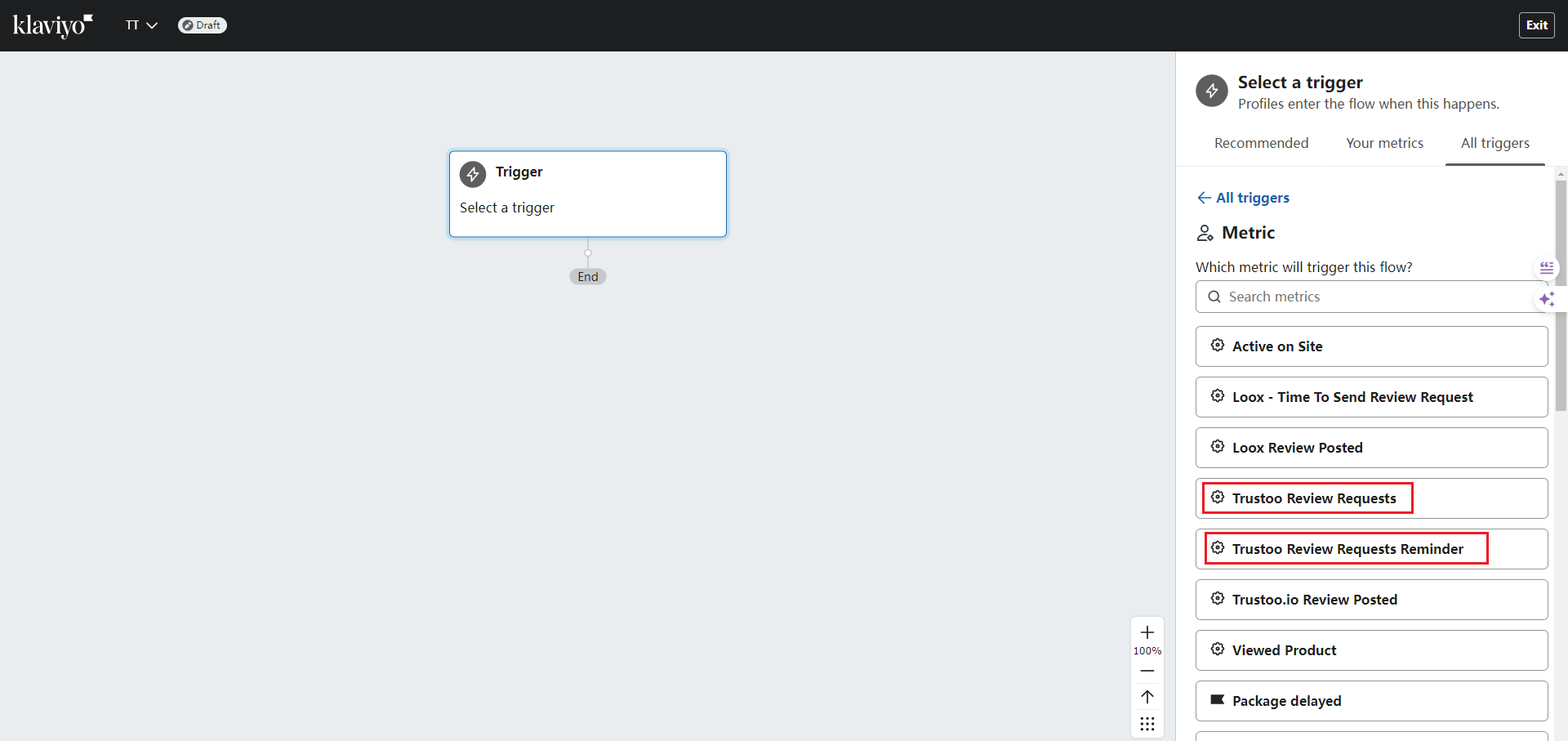
4. Select Trigger
- Go to All triggers > Metric
5. Choose Review Request Metric
Select either:
- Trustoo Review Requests
- Trustoo Review Requests Reminder
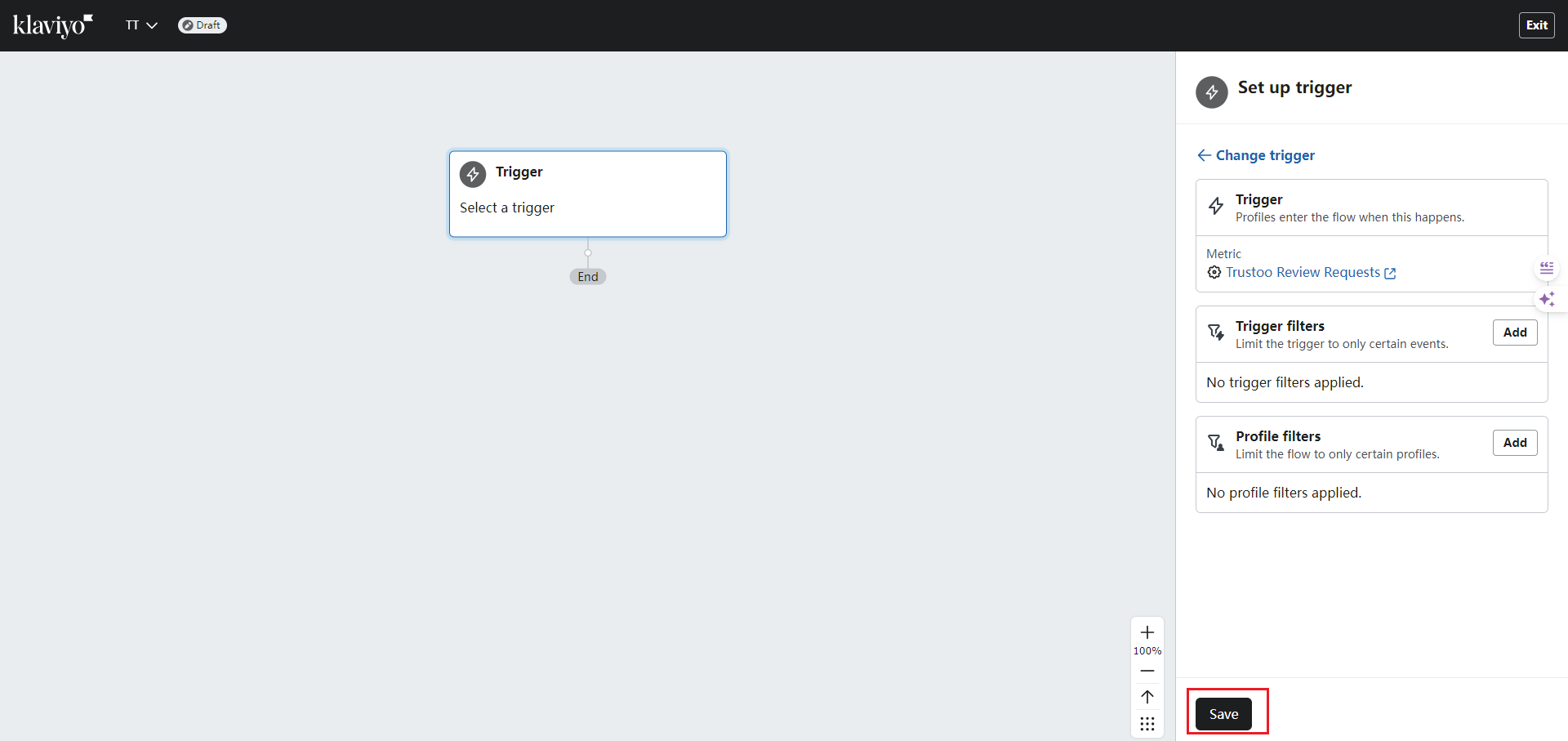
6. Save Trigger
Click Save after selecting the metric
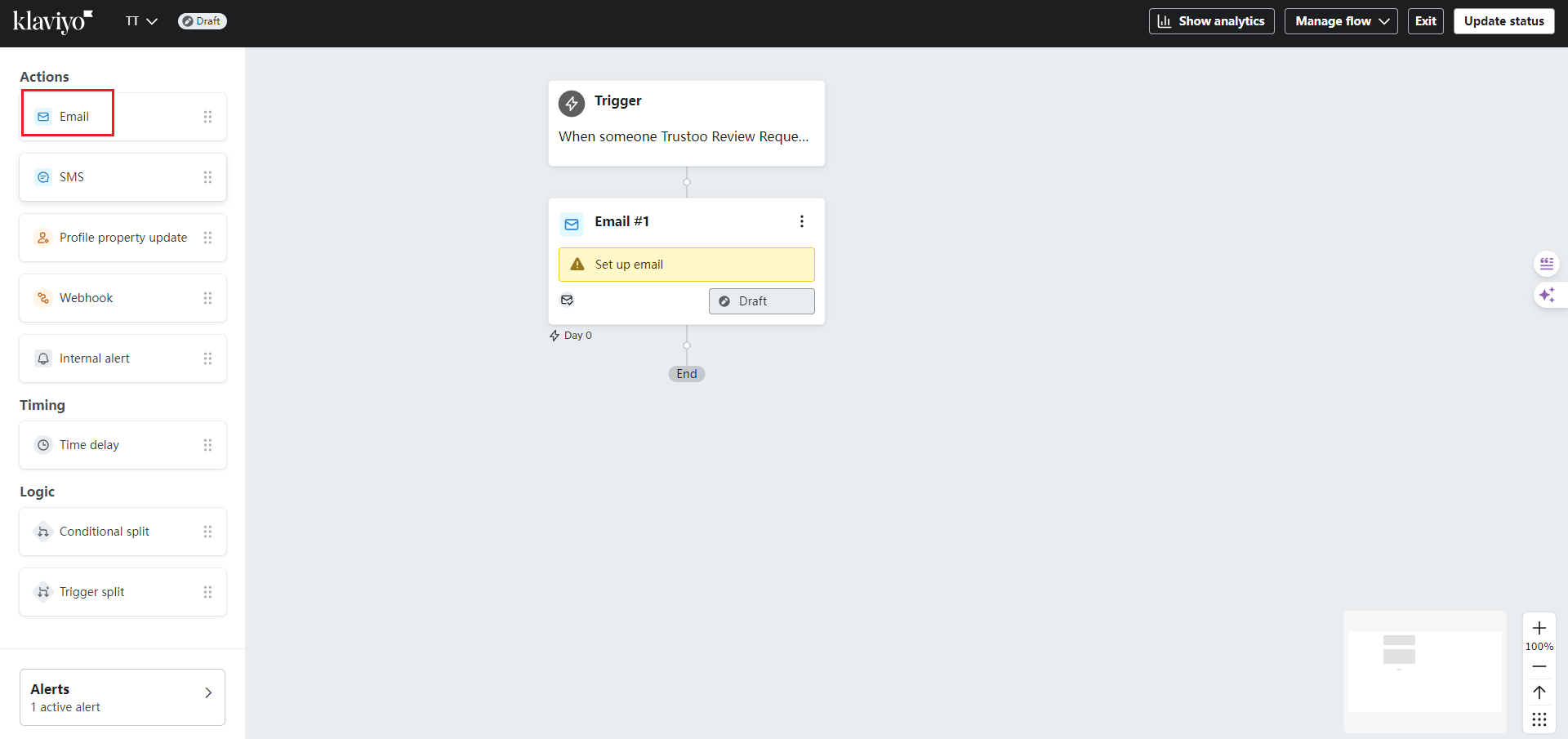
7. Add Email Option
Drag the Email option to the bottom of the trigger process
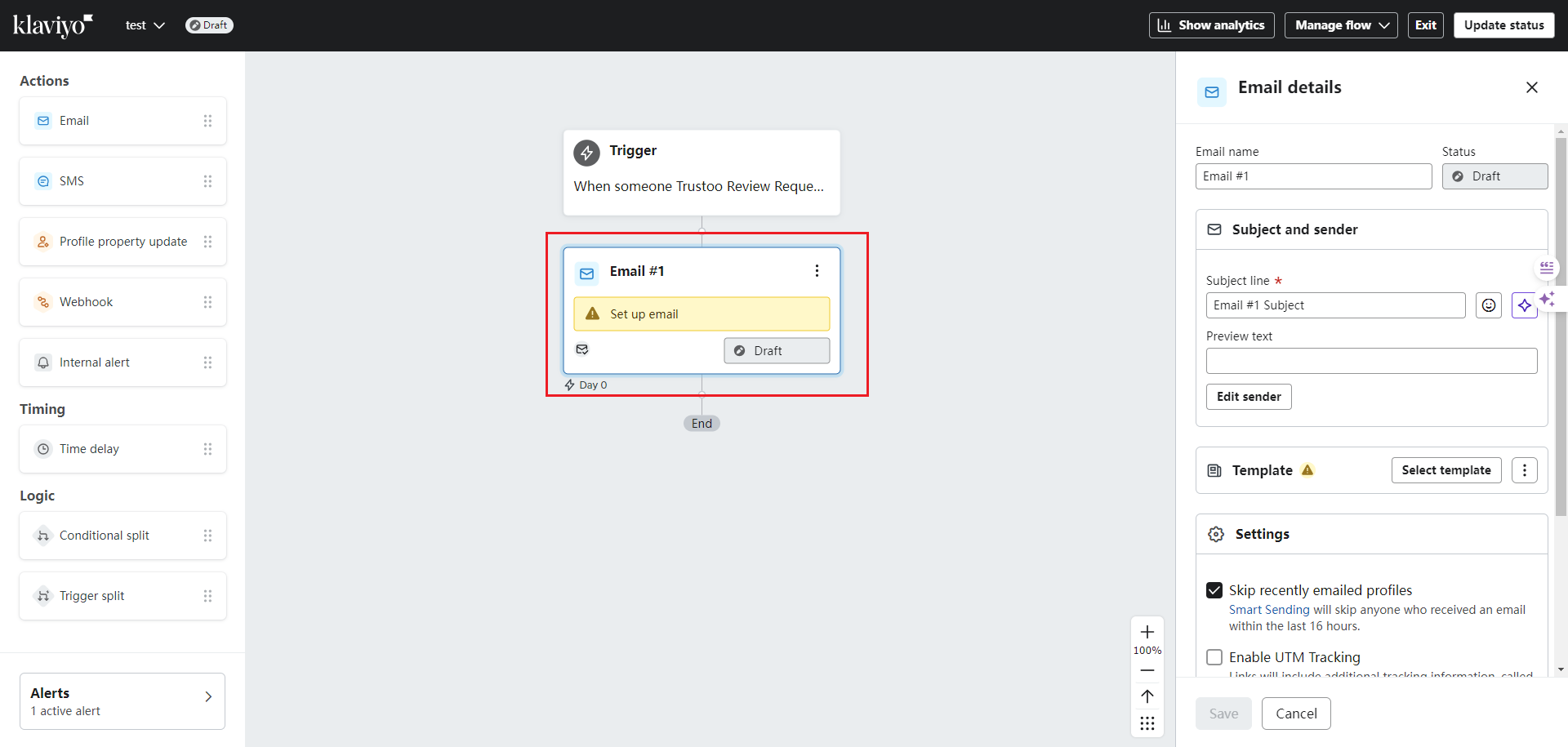
8. Configure Email Settings
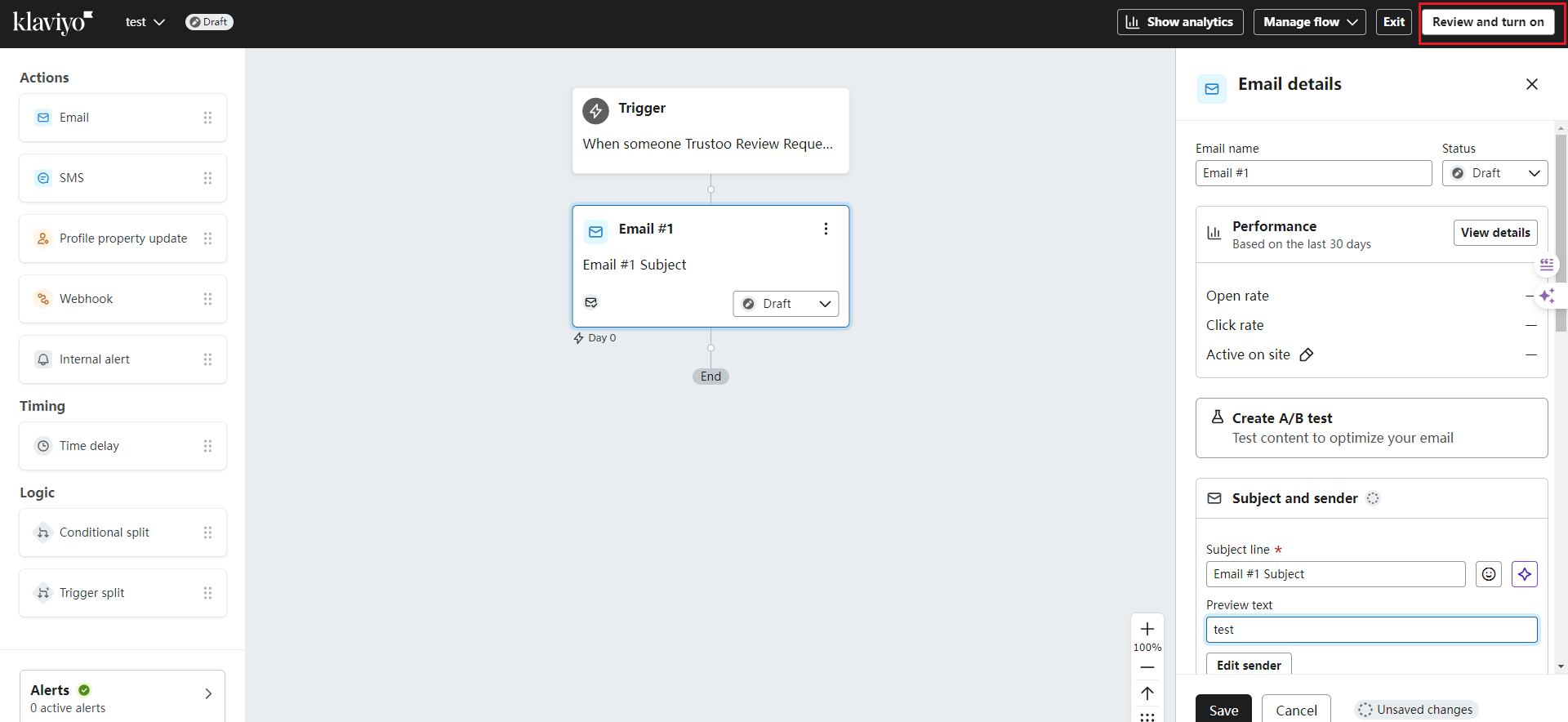
Click the Email process and set email-related information in the right panel
9. Review and Activate
- Click Review
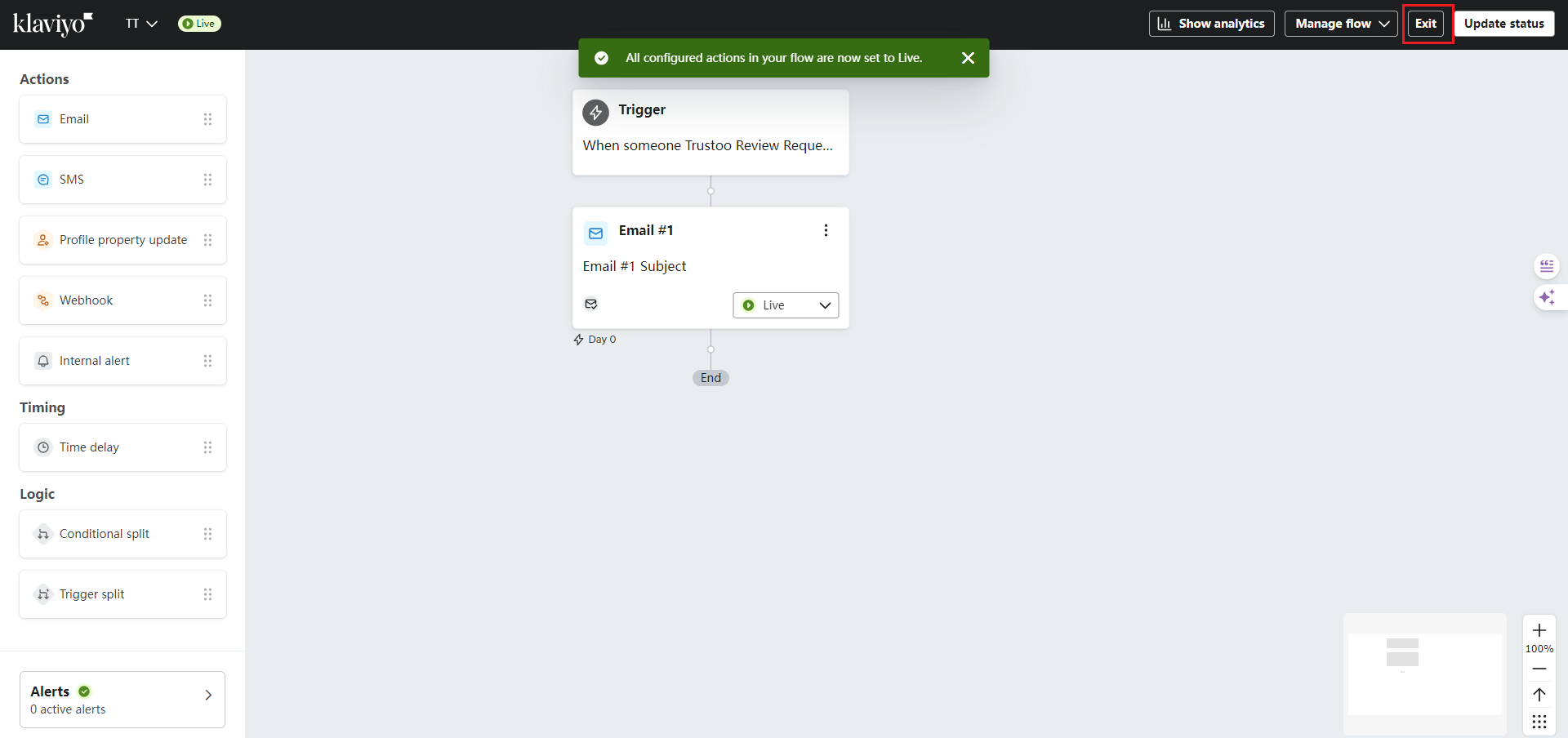
- Turn on the flow
- Select Live
- Click Save
10. Complete Setup
Click Exit to finalize the configuration
Important Notes
- Trustoo Review Requests Email will now be sent via Klaviyo
- This setup applies only to Review Requests and Review Requests Reminder emails
- Other emails will continue to be sent according to Trustoo settings
Troubleshooting
- Verify API key is correct
- Check Klaviyo integration permissions
- Ensure flow is activated and live
- Test email template thoroughly
Support
For further assistance, refer to:
- Customizing Templates in Klaviyo
- Trustoo.io support
- Klaviyo support